Your Home page answers one question: how well protected is my company right now? This guide shows you how to read it in two minutes, and what to fix first.
Every score runs from 0 to 100%. Higher is better.
Green is healthy, yellow needs attention, red needs action now. The colours mean the same on every card.
All scores are updated once a day, not live. A fix you make today shows in your score tomorrow.
Start with any red card. That is where an attacker is most likely to get in.
The top of the page is about your laptops and servers (your "endpoints").
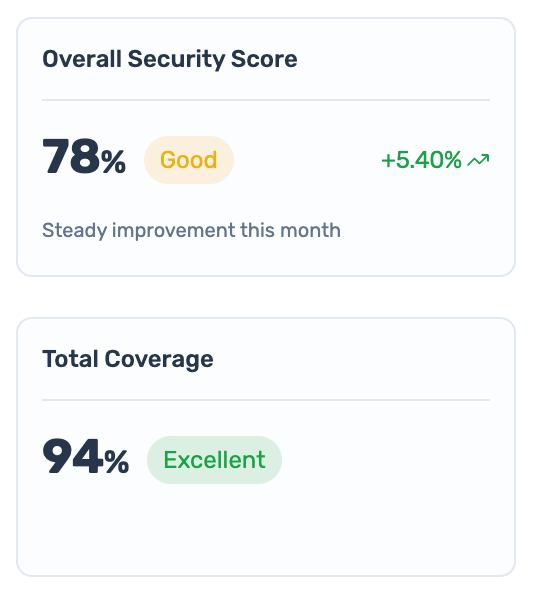
How well your devices are protected, based on open vulnerabilities (weak spots in software), how serious they are and how fast they get fixed. The green or red number on the right shows the latest change: going up is good.
This score covers your devices only. It is your Endpoint Security (EDR) score. Email, browser, cloud files and staff training each have their own card further down the page.
Excellent: 80% and above
Good: 60 to 79%
Fair: 40 to 59% (shown in light red)
Critical: below 40%
The share of your devices that have protection installed. This scale is stricter, because one unprotected laptop is an open door that nobody is watching:
Excellent: 90% and above
Good: 80 to 89%
Fair: 70 to 79% (shown in orange)
Poor: below 70%
Below that, each module has its own card. Each card shows a score, a label and a bar.

What each card looks at, and where to fix it:
Email Security: phishing and harmful emails sent to your team. Fix it in Email Security.
Browser Security: risky websites and browser extensions. Fix it in Browser Security.
External Surface Security: what attackers can see of you from the internet, such as website weak spots, SSL certificates and open ports. Fix it in External Exposure Monitor.
Cloud Storage Security: files in Google Drive or OneDrive that are shared too widely or hold sensitive data. Fix it in Cloud DLP.
Human Security: your team's security training, phishing test results and data breaches. Fix it in Human Risk Protection.
Email, Browser and Human Security use the same labels as your Overall Security Score: Excellent, Good, Fair and Critical. On all of them, a higher score is better.
External Surface and Cloud Storage show a risk level instead. From best to worst: Good, Low, Medium, High, Critical. Here "Low" means low risk, which is a good result.

Tip: when in doubt, go by the colour. Green is healthy on every card.
Upgrade To Premium: the module isn't in your plan. For add-ons such as MDM, the button says Unlock module. You are never marked down for a module you don't have.
No data: you see this on the External Surface and Cloud Storage cards only. The module is set up but has no results yet, for example on the day you connect it. This is not a score of 0.
0%: on the other cards (Email, Browser, Human Security, Overall Security Score and Total Coverage), a module with no data yet shows 0%. This means no data has arrived yet, not that you are at risk.
Free trial: during a free trial, Overall Security Score, Total Coverage and the Vulnerability Rating card show "This feature is locked in trial period."
If you only have an hour, work down this list:
Any red card. Open that module and start with its most serious items.
Total Coverage below 100%. Install protection on the devices that are missing it.
Critical and High vulnerabilities. Update or patch the software on the affected devices.
Public files. Remove public sharing from files that don't need it.
Unfinished training. Remind people who haven't completed their courses.
No. It is your Endpoint Security (EDR) score, so it is about your devices. Each other module has its own card in Risk Scores Overview.
Usually because something new was found: a new vulnerability, a file shared publicly, or a device without protection. Open the module to see what changed.
Scores aren't live. Every score, including Email, Browser and Human Security, is updated once a day, so a fix shows the next day.
Example: on Monday you patch a laptop that had a Critical vulnerability. Your Overall Security Score still shows the old number for the rest of Monday. On Tuesday, after the daily update, the vulnerability is gone from the count and your score goes up. Nothing is wrong in between: the score just hasn't caught up yet.
No. On Email, Good means 60 to 79% (yellow). On Cloud Storage and External Surface, Good is the best risk level (green). The colour tells you which.
Click Help Center at the bottom of the left menu. It opens the guides for the page you are on.
Still stuck? Ask in the chat and our team will help.
