This guide explains how to activate the Cloud Security Module on the HOPLONai Platform. It is designed to help you enhance the security of your cloud environment by setting up a secure connection between your Google Cloud account and the HOPLONai Platform. Step-by-Step guidance.
Before you begin, make sure you have the following:
Google Workspace Super Admin Account
You must be signed in as a Super Admin in Google Workspace.
Learn more about Super Admin roles here:
Google Workspace Admin Help – Super Admins
Easy Guide to Activate the Cloud Security Module on HOPLONai
Where to Start:
After reaching the Cloud Security activation section on your HOPLONai Platform:
Select Activate:
Click Activate button which is adjacent to “Cloud Security” to begin the process.
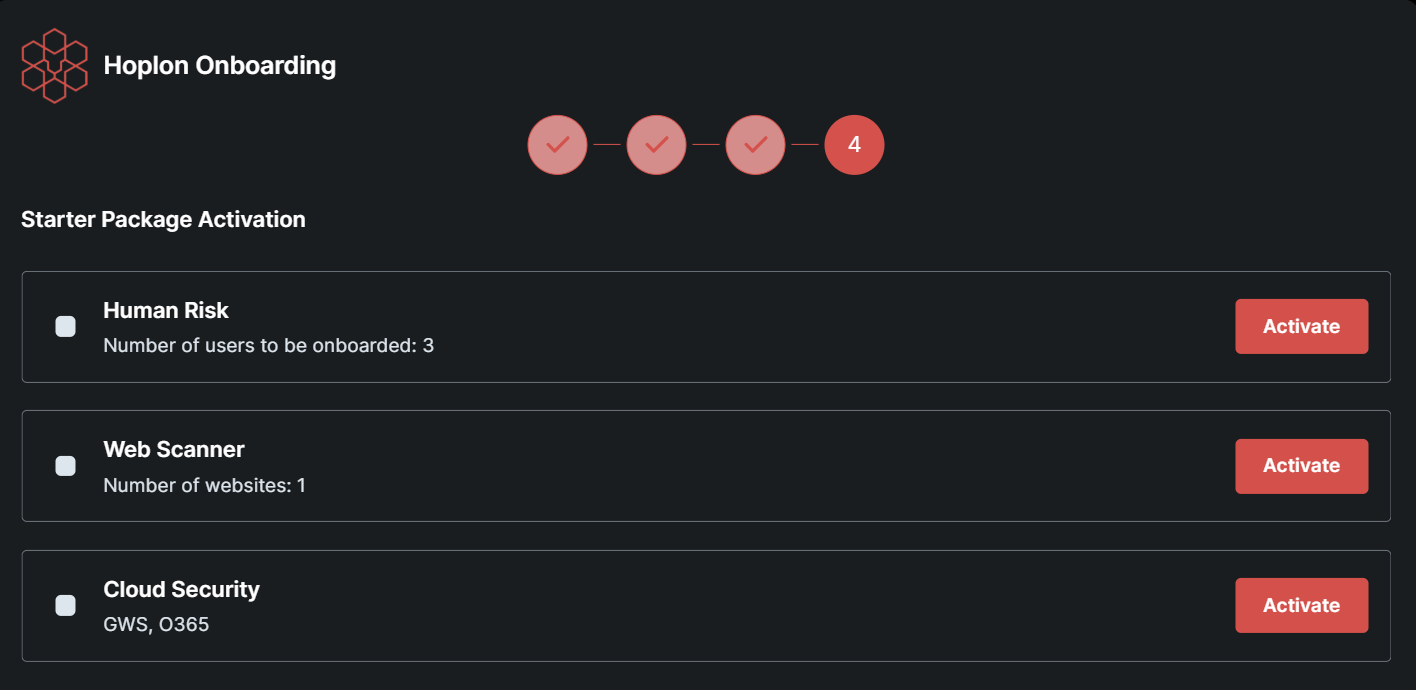
Initiate Activation for Both Platforms:
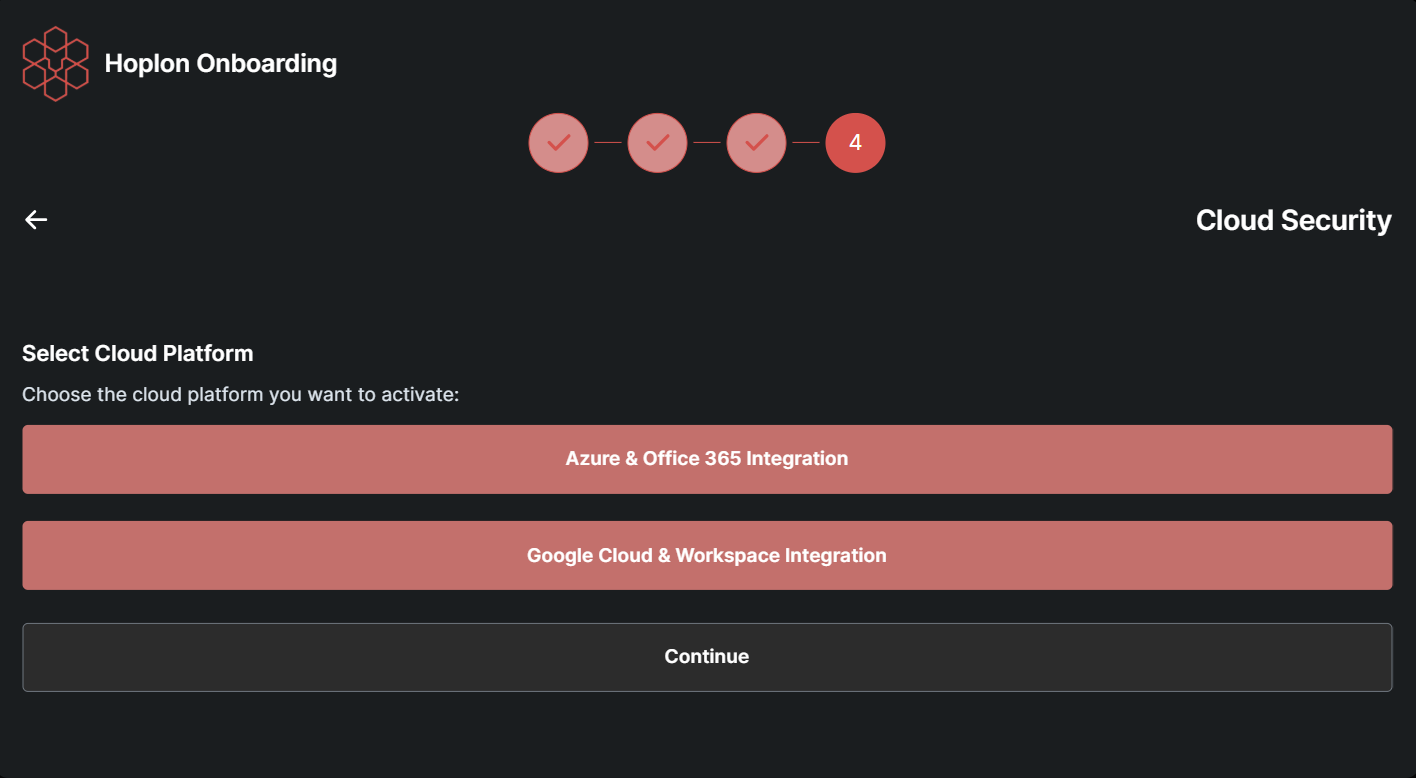
Click on Google Cloud & Workspace Integration.
Verify Prerequisites:
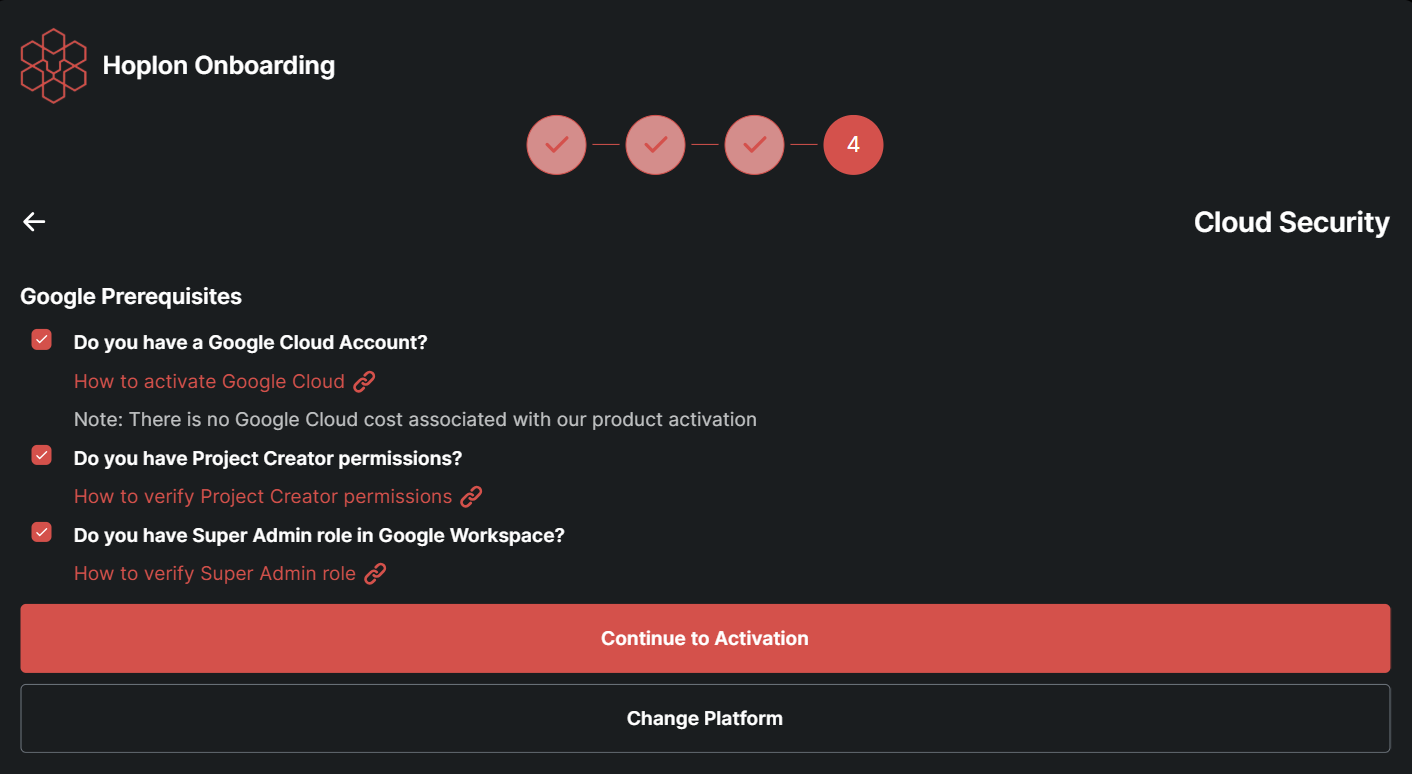
Ensure that all prerequisites (e.g., your Super Admin status and Google Cloud permissions) are complete. Then, click Continue Activation.
Log In to Google Admin Console:
Open the Google Admin Console and sign in using your Super Admin account.
Navigate to Delegation Settings:
Go to:
Security > Access and Data Control > API Controls > Manage Domain-Wide Delegation
Add New Delegation:
Click Add new.
Enter Details:
Client ID: Paste the Client ID you copied earlier.
OAuth Scopes: In the OAuth Scopes field, paste the following list (each scope separated by a comma):
https://www.googleapis.com/auth/drive.activity.readonly, https://www.googleapis.com/auth/drive.metadata.readonly, https://www.googleapis.com/auth/admin.reports.audit.readonly, https://www.googleapis.com/auth/admin.reports.usage.readonly, https://www.googleapis.com/auth/drive.readonly, https://www.googleapis.com/auth/admin.directory.user.readonly, https://www.googleapis.com/auth/drive.appdata, https://www.googleapis.com/auth/drive.apps.readonly, https://www.googleapis.com/auth/drive, https://www.googleapis.com/auth/spreadsheets.readonly, https://www.googleapis.com/auth/admin.directory.user.security Finalize:
Click Authorize to complete this step.
Note:
If you encounter any difficulties during the upload or activation process, please contact support for assistance.
