Ensuring that phishing simulations and human risk training emails reach your users without being blocked is essential for an effective security awareness program. Google Workspace's built-in security features can sometimes filter these emails as spam or phishing attempts. To prevent this, you need to whitelist the designated IP addresses for the Human Risk Module.
This guide will walk you through the process of whitelisting these IPs in Google Workspace step by step.
By adding these IPs to your Google Workspace allowlist, you ensure:
✔ Phishing simulations are delivered to employees for training purposes.
✔ Human risk training emails reach inboxes without being marked as spam.
✔ Security awareness programs function without interference from email filtering.
Go to admin.google.com.
Sign in using your administrator credentials.
Click on Apps.
Select Google Workspace.
Choose Gmail.
Scroll down and select Spam, phishing, and malware.
Locate the Email allowlist section.
Click Add and enter the below IP addresses for the Human Risk Module.
198.21.6.191
168.245.56.242
99.80.168.14
Save your changes.
This ensures that emails sent from the specified IPs are not filtered by Google’s spam or phishing detection mechanisms.
In the Google Admin Console, go to Apps.
Select Google Workspace > Gmail.
Choose Spam, phishing, and malware.
Click on Add another rule under Spam.
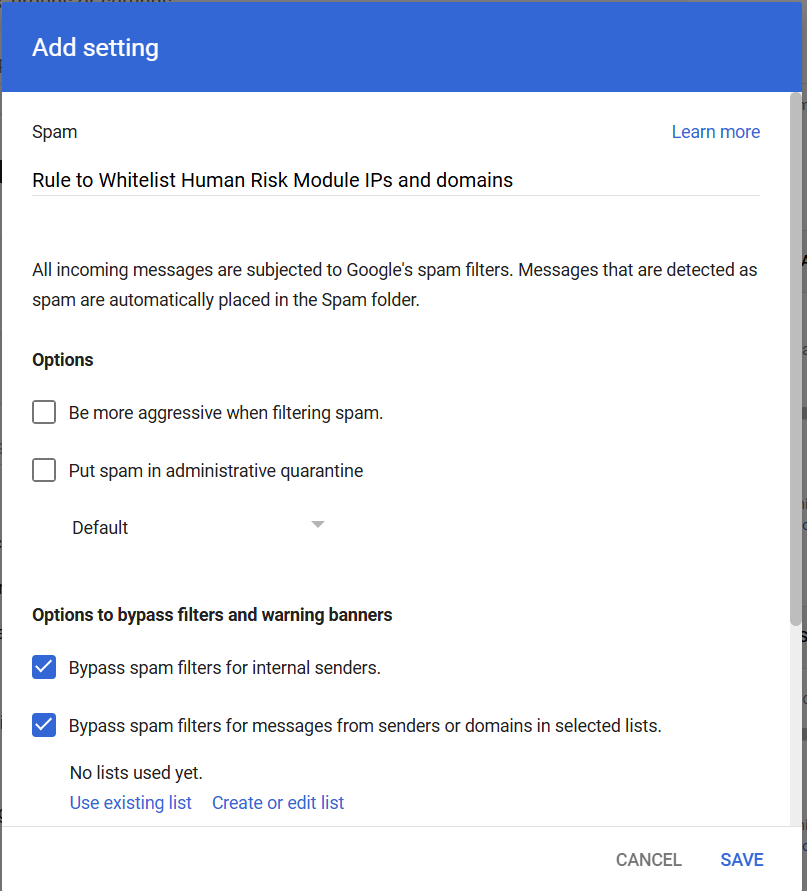
Enter a meaningful description for the rule.
Check the box for Bypass spam filters for messages from senders or domains in selected lists.
Click Create a new list and enter the following domains:
Check the box for Bypass spam filters and hide warnings for messages from senders or domains in selected lists.
Select the list created in the previous step.
Save the rule.
Click on Add another rule under Blocked Senders.
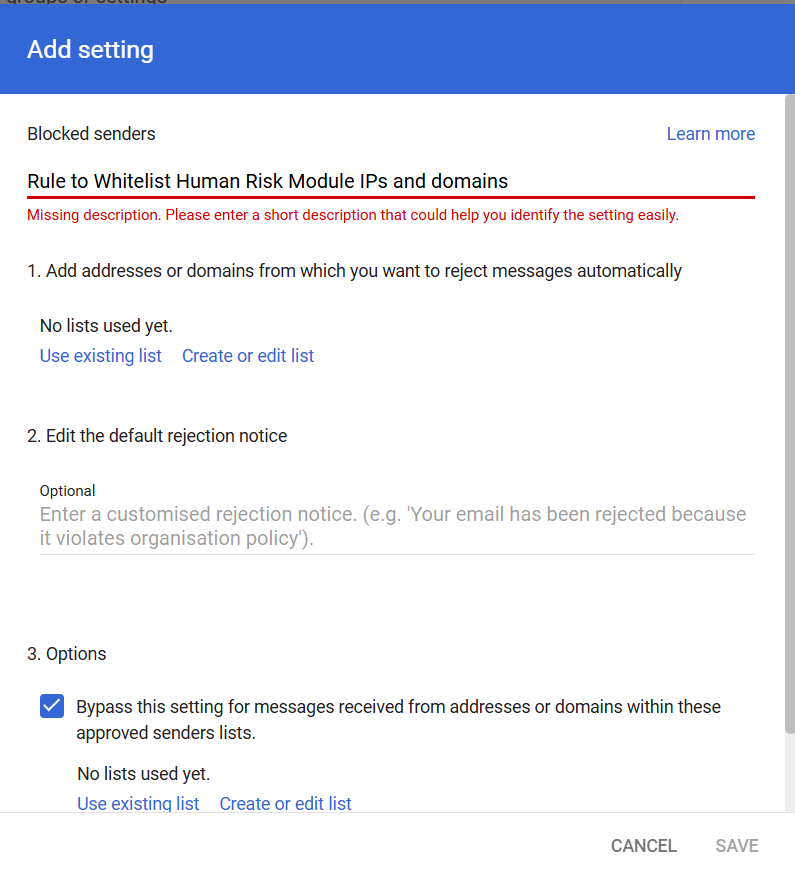
Enter a meaningful description for the rule.
Check the box for Bypass this setting for messages received from addresses or domains within these approved senders lists.
Select the list created in Step 2.
Save the rule.
By implementing these whitelisting rules, you ensure that security awareness training emails and phishing simulations are effectively delivered to your users, allowing them to build stronger cybersecurity habits without interference from spam filters.
Need further assistance? Let us know!
